How to Add a Smile to a Photo
Someone blinked out of their smile, looked too serious, or was caught mid-frown — and it's the only photo you have. With an AI smile enhancer you can add a natural smile to a photo in seconds, and control exactly how big that smile is.
What makes an AI-added smile look natural?
A real smile isn't just a mouth shape — cheeks lift, eyes narrow slightly, small creases appear. Cut-and-paste edits miss all of that, which is why they look uncanny. Reshot AI's Smile Enhancer regenerates the lower face together with the surrounding muscles, so the smile engages the whole face the way a genuine one does.
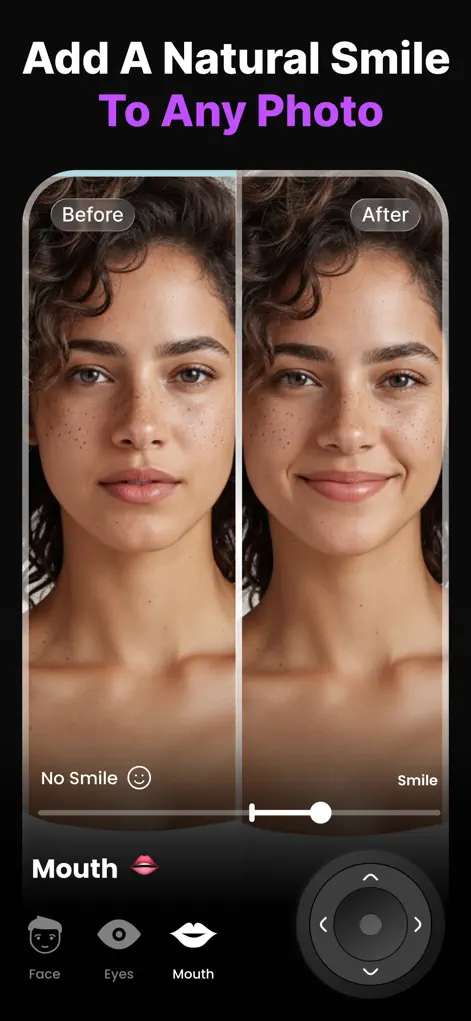
Step-by-Step: How to Add a Smile to a Photo
- Import the photo. Open Reshot AI and choose the photo with the serious or frowning subject.
- Open the Smile Enhancer. Select the face you want to edit (it works in group photos too), then open the smile controls.
- Dial in the smile. Use the smile slider to go from a subtle closed-lip grin to a full open smile. Adjust mouth openness separately for a natural tooth line, or pick one of the smile presets.
- Check the before/after and save. Use the comparison view to confirm the smile looks like them, then export in high resolution.
Try It on Your Own Photo
Expression Editor – Reshot AI is free to download on the App Store. Fix your first photo in under a minute.
⬇ Download Reshot AIFrequently Asked Questions
Can I make someone smile in a picture without it looking fake?
Yes — because the AI adjusts the whole facial region, not just the lips, moderate smile settings look genuinely natural in most photos.
Can I control how big the smile is?
Completely. A slider takes you from neutral to a wide open smile, with separate control over how open the mouth is.
Does it work if the person is frowning?
Yes. The Smile Enhancer can take a frown or neutral expression to a smile in one edit.