How to Open Closed Eyes in a Photo
The group finally lined up, the photographer counted down — and someone blinked. Blinks ruin more group photos than anything else. Instead of choosing between ten almost-good frames, you can open closed eyes in a photo with AI and keep the best shot.
How can AI open eyes that are closed?
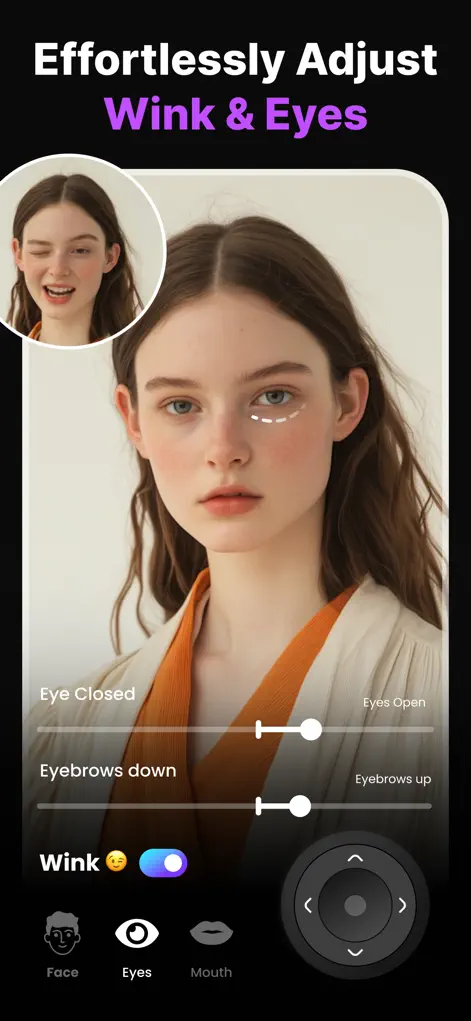
AI expression editors analyze the visible facial structure — brow, eye sockets, skin tone, lighting direction — and regenerate the eye region realistically. Unlike old tools that pasted stock eyes onto the face, Reshot AI's eyelid-openness control reconstructs that person's eyes, so shape and color stay true to them.
Step-by-Step: How to Open Closed Eyes in a Photo
- Load the blink photo. Open Reshot AI and import the photo. In a group shot, tap the face with the closed or half-closed eyes.
- Open the Eye Expression Studio. Go to the eye controls where you'll find eyelid openness, eye direction, and eyebrow sliders.
- Raise the eyelid-openness slider. Increase openness until the eyes look naturally awake. If the gaze lands somewhere odd, nudge the eye-direction control toward the camera.
- Save the fixed photo. Compare before/after and export the high-res result.
Try It on Your Own Photo
Expression Editor – Reshot AI is free to download on the App Store. Fix your first photo in under a minute.
⬇ Download Reshot AIFrequently Asked Questions
Will the opened eyes look like the person's real eyes?
Yes — the AI reconstructs the eyes from that person's own facial structure and the photo's lighting, rather than pasting generic eyes.
Can I fix just one person's blink in a group photo?
Yes. Reshot AI supports per-face editing, so you can open one person's eyes and leave everyone else untouched.
Does it work on half-closed or squinting eyes?
Yes — the openness slider is continuous, so it handles anything from a slight squint to fully closed eyes.